Remove fog, particles and effects — more FPS in PoE 1 & 2
Updated: July 2026
Why PoE runs badly: delirium fog, particles, shadows, shader stutter
Path of Exile 1 and 2 don't tank your FPS because of heavy textures — they tank it because of what fills the screen in combat. The biggest frame killers are translucent, full-screen layers and volumetric effects: delirium fog that spreads out from the mirror and blankets the whole screen with particles; rain and clouds on atlas maps; smoke, sparks and flashes from skills; shadows cast by dozens of monsters and props. Add shader compilation the first time you meet an effect — the micro-freezes (shader stutter) where the game hitches for a fraction of a second — and you get frame drops exactly where you need smoothness most: Breach, Delirium, Ritual, bosses.
On a low-end PC or laptop the problem is double. Not only does FPS drop — the screen fills with visual noise, and you stop seeing dangerous ground mods and monster HP bars. Stripping the extra layers gives you both: more frames and a cleaner picture.
In-game graphics settings (and where they hit a wall)
The first thing to do is squeeze everything out of the built-in settings. It's free and carries no risk:
- Lower the shadow resolution or turn shadows off entirely.
- Drop texture and effect quality, disable bloom and depth of field.
- Set a sensible FPS cap so the GPU isn't cooking for nothing.
- In PoE 2, try different graphics APIs (DirectX 12 / Vulkan) — on some rigs the difference is real.
- Warm up shaders: let the game load effects before you dive into dense content.
But the sliders have a ceiling. Settings tune the quality of an effect, not whether it gets drawn at all. Delirium fog, atlas fog, rain and clouds stay on screen even on the lowest preset — the engine still renders those layers. This is exactly where the in-game menu hits a wall.
What you can remove at the file level that settings won't touch
The game's visual assets live in the client data archive — Content.ggpk in PoE 1 and the _.index.bin set in PoE 2. These files describe which effects, particles and weather layers the game draws. There's no "disable delirium fog" slider in the menu, but at the file level that effect can simply be switched off — leaving the engine with nothing to draw.
This isn't an overclock or "magic": you edit the local client assets while the game is closed. No reading or writing process memory, no injection, no contact with GGG servers. That's exactly what Prism does — it edits the data files offline and keeps a full backup so you can restore vanilla at any time.
Disable delirium fog, rain, clouds and atlas fog
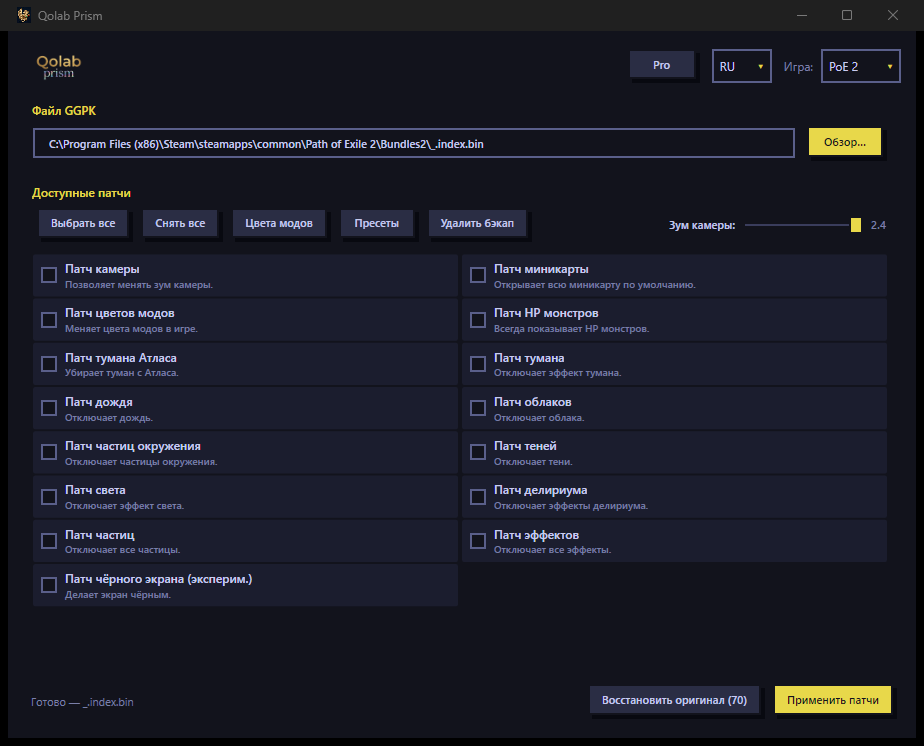
The biggest wins come from the weather and atmospheric layers — they're full-screen and translucent, which makes them the most expensive things to render. In Prism these are individual toggles:
- Delirium fog — the grey fog that swallows the screen during Delirium. Turned off completely: the content stays, the fog goes.
- Atlas fog — the haze on the atlas map.
- Rain and clouds — area weather effects.
- General environment fog.
With these off the content plays exactly as before — monsters, rewards and mechanics are all intact — you just lose the translucent layer that was choking the screen and your frames.
Remove particles, shadows and effects for FPS
The second big source of drops is particles and effects. Prism gives you tiers so you pick your own balance between looks and FPS:
- Environment particles — sparks, dust, fireflies in areas.
- All particles — a more aggressive option when frames matter more.
- All effects — takes the main load off in dense packs.
- Shadows — monster and prop shadows, one of the most expensive line items for a weak GPU.
- Lights and corpses on the ground — fewer objects in the scene, less load.
Worth calling out separately: always show monster HP bars — that's pure QoL visibility, not some "ESP". You simply always see a target's health without hovering. And reveal the full minimap makes it easier to navigate without running blind. This is not a maphack — it's an offline display toggle.
Low-end PC and laptop: recommended toggle set
If you're on integrated graphics or an old laptop, start with this set — it gives the most FPS for the least visual loss:
- Delirium fog — off.
- Rain, clouds, atlas fog — off.
- Shadows — off.
- Environment particles — off (if that's not enough, all particles).
- Corpses — off.
- Always show monster HP bars — on (target visibility).
- Reveal minimap — on.
Once that's running, add atmosphere back one layer at a time while watching FPS. For a more comfortable view in dense content the camera zoom 1.2x–2.4x also helps — we cover it separately: camera zoom in PoE.
How Prism does it (offline, backup, one-click restore)
Prism (the flagship of the QoLab toolset) is a Windows 10/11 desktop utility. The flow is simple: close the game, flip the toggles you want, and Prism edits the local client data files and makes a full backup. Launch PoE — effects off, FPS up. A one-click "Restore to vanilla" button reverts everything to the original.
Straight talk on safety: Prism only modifies local client assets while the game is closed — it does not read or write process memory, does not inject into the process, does not automate gameplay, and does not interact with GGG servers. That said, GGG's Terms of Service do technically forbid any client modification — you should know that. From what is known, enforcement has historically targeted bots and memory/automation tools, not offline cosmetic file edits — but that's an observation, not a guarantee. We won't claim "100% safe" or "you won't get banned"; the choice is yours, and the full backup plus one-click restore are always there. Changes persist until the next game or league update — after a patch you just re-apply your set.
For more, see the FAQ. Ready to boost FPS and clean up the screen? Download Prism from the homepage and build a toggle set tuned to your PC.
How do I remove delirium fog in PoE 2?
There's no slider for it, but at the client file level the fog can be disabled — the engine has nothing to draw. In Prism it's a single toggle: the content stays, the translucent fog is gone, and FPS goes up.
How do I boost FPS in PoE 2 on a low-end PC?
First squeeze the graphics settings (shadows, effects, FPS cap). Then remove what the menu can't — fog, rain, clouds, particles, shadows — at the file level. Full-screen translucent layers eat the most frames.
Is removing effects a cheat?
No. It's an offline edit of cosmetic client files with the game closed: no memory reads, no injection, no automation. Prism keeps a backup and one-click revert. GGG's rules formally forbid client modification — no guarantees.